On this page
Ever seen a password like Vientiane@2026 that becomes Vientiane@2026! three months later? That is the direct result of "must contain upper case, a number and a symbol, and change every 90 days". Users aren't lazy; they comply in the easiest possible way, and attackers know the pattern well.
What NIST changed
NIST SP 800-63B (Revision 4, published 2025) is the guidance many organizations worldwide reference. The essentials:
| Old rule | Current guidance |
|---|---|
| 8 characters with upper/lower/number/symbol | Length matters more. At least 15 characters when the password is the only factor; at least 8 when used with MFA. Allow at least 64 characters, including spaces |
| Composition rules | Don't require mixtures of character types |
| Change every 90 days | No forced periodic changes. Change on evidence of compromise |
| Security questions ("mother's name?") | Don't use them |
| No checking | Screen against breached-password lists and common words (including the company name) |
For ordinary staff, recommend a passphrase: four or five unrelated words, in any language written in Latin script. Easy to remember and long enough.
Admin and service accounts get random secrets of 20+ characters generated by a password manager or PAM tool. Nobody needs to remember them.
A policy you can adopt this month
- Accounts protected only by a password: at least 15 characters. Accounts with MFA: at least 8, though we set 12 as the floor in practice.
- Allow at least 64 characters, spaces included, and allow paste so password managers work.
- No composition rules and no scheduled expiry. Force a change only when there is a sign of compromise.
- Block passwords found in breach lists, plus local favourites: the company name, "Vientiane", "Laos", "Champa", year numbers and keyboard runs like "qwerty".
- Limit failed attempts per account (NIST sets the ceiling at 100 consecutive failures; most systems use far fewer) and alert on bursts of failures.
- MFA for every account that can reach email, files, VPN or money.
That fits on one page. Staff read one page. They don't read twelve.
MFA methods are not equal
| Method | Phishing-resistant? | Field notes |
|---|---|---|
| SMS OTP | No | SIM-swap risk; arrives late or not at all in weak-signal areas. Better than nothing |
| Authenticator app (6-digit TOTP) | No | Works with no signal or data, but the phone's clock must be right |
| Push + number matching | No (but defeats MFA fatigue) | Phone needs a data connection |
| Passkey / FIDO2 security key | Yes | Bound to the real domain; a fake site can't obtain a valid signature |
| Certificate / smart card | Yes | Good for managed devices and admins |
A common misunderstanding: TOTP and push are not phishing-resistant. An adversary-in-the-middle login page can relay a six-digit code or a push approval to the real site in real time and steal the session cookie. Privileged accounts should use passkeys or security keys.
MFA fatigue: an attacker who already has the password sends push prompts at night until the user approves one just to make it stop. Number matching fixes this, because the user has to type the number shown on the login screen. Teach staff that an unexpected prompt means their password is already compromised and must be reported.
Rollout order
- All administrators (domain, firewall, Microsoft 365/Google Workspace, backup). Use security keys where possible.
- Email and cloud for everyone.
- VPN and remote access.
- Finance systems, online banking and ERP.
- Turn off legacy authentication: old protocols (POP, IMAP, SMTP AUTH with basic auth) that bypass MFA. In Exchange Online, basic auth for POP, IMAP and most other protocols is already gone. SMTP AUTH client submission is the exception: Microsoft plans to switch it off by default for existing tenants at the end of December 2026, so find the scanners, copiers and old apps that still send mail that way and move them to OAuth or a relay now.
- Write the account recovery process. How does someone who lost their phone prove who they are? A helpdesk that resets MFA for anyone who calls is a route attackers really use.
Lao conditions to plan for
Staff at mines, dams and construction sites often work where mobile signal comes and goes, on personal phones. An SMS code that arrives five minutes late leads to requests to "please turn off MFA for me". A TOTP authenticator app works offline, so it is the better default for this group.
For IT admins and finance staff who approve payments, issue two security keys per person (one daily, one backup kept somewhere safe). Order them from Thailand with other equipment and enrol both on the same day.
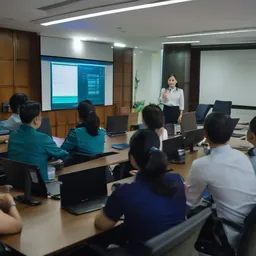
Write the setup guide in Lao and Thai with screenshots, and run setup together as a group. An email telling people to "go and set it up yourself" tends to get the weakest results.
Password managers
One employee has dozens of accounts. Without a tool, they will reuse one password everywhere. A business password manager:
- Generates random passwords and autofills only on the correct domain. If it refuses to fill, that is a phishing warning.
- Lets teams share credentials without pasting them into chat.
- Revokes access immediately when someone leaves.
Privileged accounts
Separate admin accounts from the daily account used for email. Keep one or two break-glass accounts excluded from normal conditional access, protected by a security key or a long password sealed in a safe, with an alert on every sign-in. In Microsoft 365 or Google Workspace, use Conditional Access (or Context-Aware Access) to block sign-ins from unexpected countries or unmanaged devices.
Passkeys are ready now
Both Microsoft Entra ID and Google Workspace let users sign in with passkeys, either on a hardware security key or stored on the phone and unlocked with a fingerprint or face. For staff, a passkey is actually easier than a password plus code: one touch, nothing to type. We now start admins and finance staff on passkeys or security keys, and move other staff over as their phones and apps allow. Keep the authenticator app as the fallback for older phones.
Worked example: a 60-person company in four weeks
Picture 5 IT and finance admins, 40 office staff and 15 people at a remote site with patchy signal.
| Week | What happens | Detail |
|---|---|---|
| 1 | Admins and break-glass | 10 security keys (two per admin), separate admin accounts, two break-glass accounts with sign-in alerts |
| 2 | Group setup sessions | Four sessions of about 15 people, 30 minutes each, by department. Office staff on the authenticator app with number matching |
| 3 | Remote site | Authenticator app (TOTP) set up in person on the next site visit, since it works offline. Spare keys for the two people with no smartphone |
| 4 | Enforce and clean up | MFA required for everyone, legacy authentication blocked, shared mailboxes converted so nobody signs in to them directly, report checked for stragglers |
Budget a short slowdown in week 2 for helpdesk calls. After week 4, the calls drop to lost phones and new starters, and that is where the written recovery process earns its keep.
Mistakes we still see
- MFA exemptions for executives "for convenience", when executives are the top BEC target.
- Shared admin@ or info@ accounts used by several people, with no MFA.
- Monthly forced changes, resulting in passwords stuck to monitors.
- MFA resets over WhatsApp without calling back a number on file.
Find out which accounts still lack MFA
Microsoft 365 and Google Workspace both have reports showing which users have registered MFA and with what method. Give us read-only access and we'll send you the list of accounts with no MFA, admins still on SMS, and any legacy authentication still enabled.
- #password
- #mfa
- #fido2
- #passkey
- #identity
- #policy